Sharing Configuration Across Devices
Preferis supports sharing configuration across devices through cloud storage such as OneDrive, Google Drive, and iCloud.
Sharing the configuration file
Select General in the sidebar, then click Change Location under Configuration File to change where the configuration file is stored.
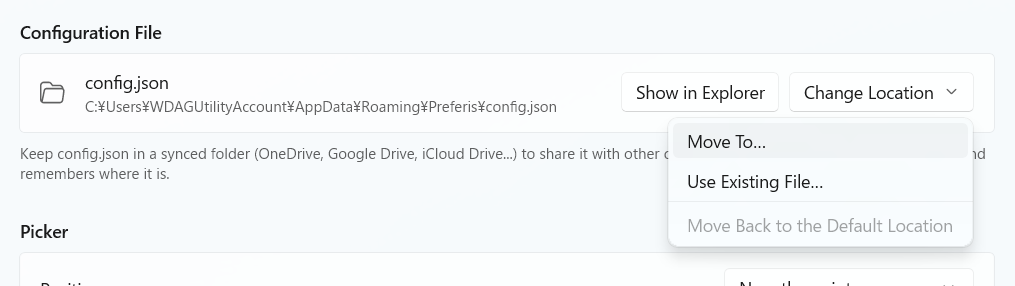
Choose Move To… to move the current configuration file to a new location. You can use this to move your configuration to a folder synced by your cloud storage service. On another device, choose Use Existing File… and select the synced file to use the synced configuration.
Configuration sharing is intended for your own devices, rather than for a team. Sharing configuration with other people is not recommended, particularly because it can include commands to run.
Using different browsers on different operating systems or devices
Syncing the configuration file lets you share profiles and rules across devices. However, you may want a profile to open a different browser on each device. For example, you might use Microsoft Edge on Windows and Apple Safari on macOS.
Profiles offer two ways to customize the behavior on each device: choosing a browser for each OS, or configuring a browser for each device.
1. Choosing a browser for each OS
To use different browsers on Windows and macOS, turn on Different browser on each OS in the profile's Browser section. This lets you configure the browser for each OS separately.
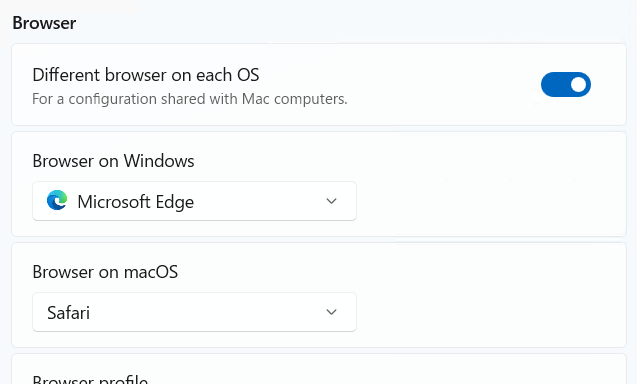
This setting is shared across devices. If you need more specific settings, use the per-device option below.
2. Choosing a browser or action for each device
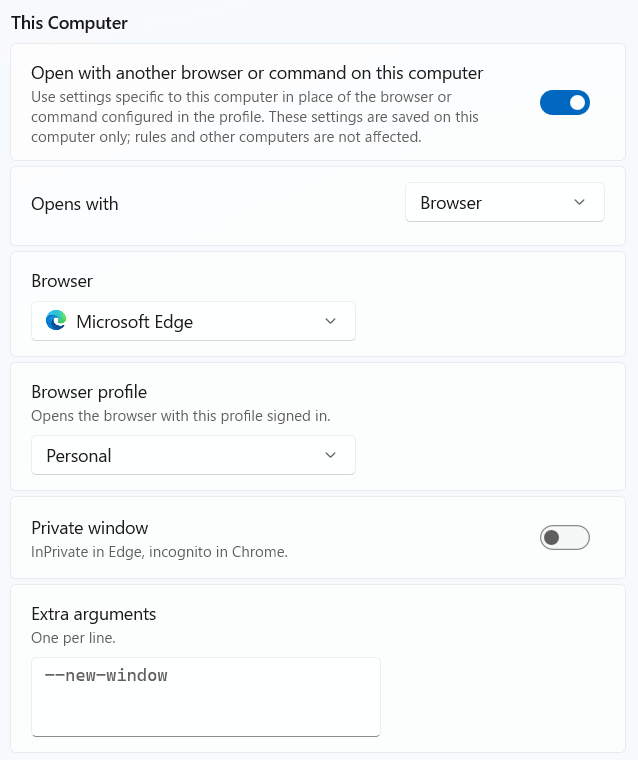
To use a different browser or action on each device, enable Open with another browser or command on this computer under This Computer.
The available options are similar to the profile's usual browser settings, but these settings override the shared configuration on the current device.
These settings are stored separately from the synced shared configuration file (config.json). For details, see Configuration Files.
Profile targets and empty profiles
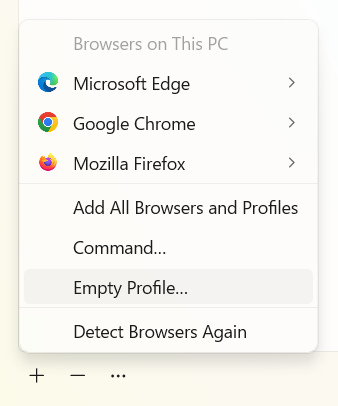
If a profile is meant to change on each device from the start, set its Opens with option to Set on each computer to make it explicit that the profile needs the Open with another browser or command on this computer setting.
This lets you keep detailed browser settings out of the shared configuration.
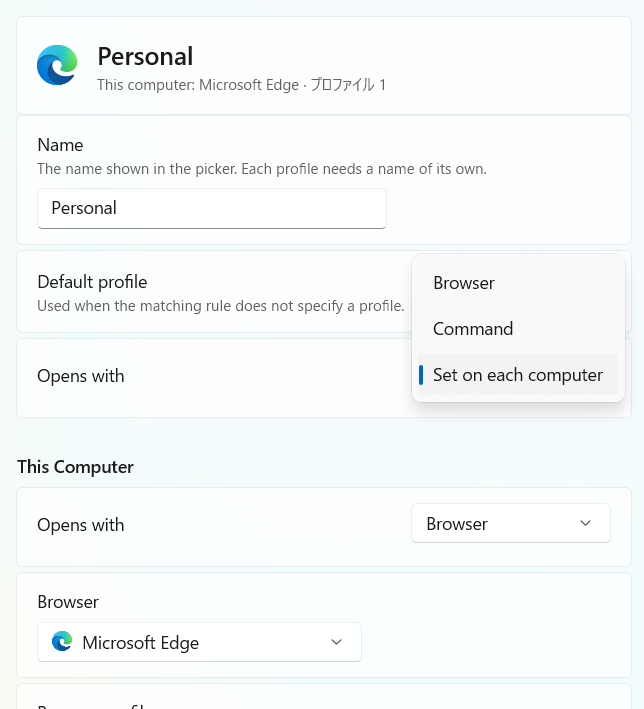
Profiles created with Empty Profile… also use Set on each computer by default. This is the recommended approach when the profile is intended to use a different browser or action on each device from the outset.