Quick Start
This guide walks you through setting up Preferis after installation, creating a simple rule, and checking that it works.
Opening settings
Launch Preferis from the Start menu, Finder, or a similar launcher to open the settings window. The screenshots below show the Windows version; the macOS version has a similar layout.
Setting the default browser
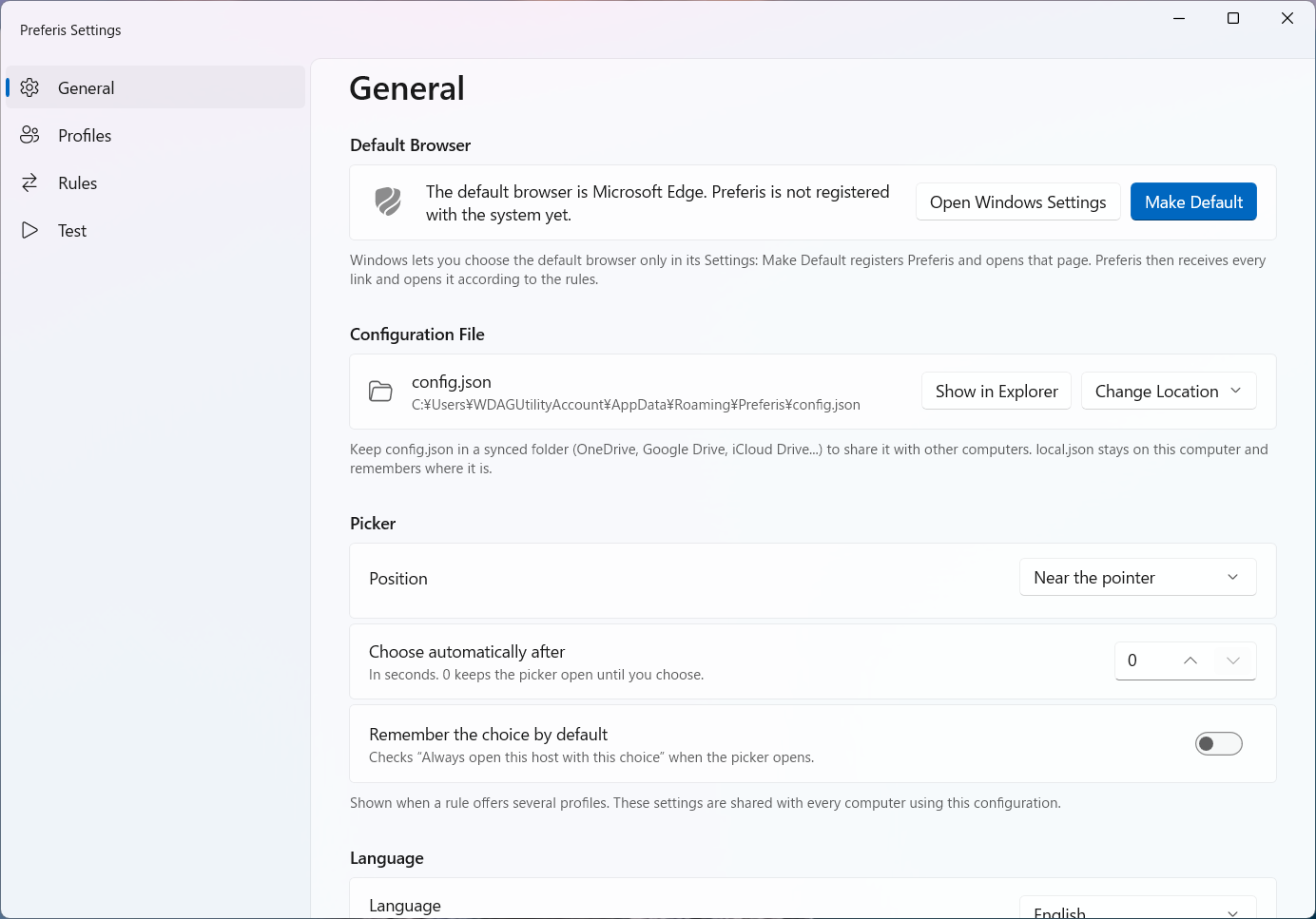
First, set Preferis as your OS's default browser. Select General in the sidebar, then use the Default Browser section to make Preferis the default.
Setting up profiles
Preferis lets you define which URLs to match and which browser to launch. The URL conditions are called rules, and the browser configurations are called profiles. You need to define profiles before creating rules.
To add a profile, select Profiles in the sidebar and click the + button below the list in the center of the window. You can then choose a browser or one of its browser profiles.
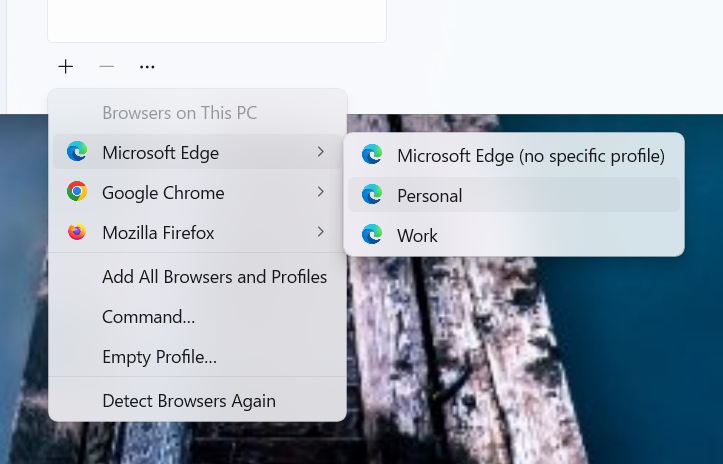
The browser or browser profile you choose is added to the list.
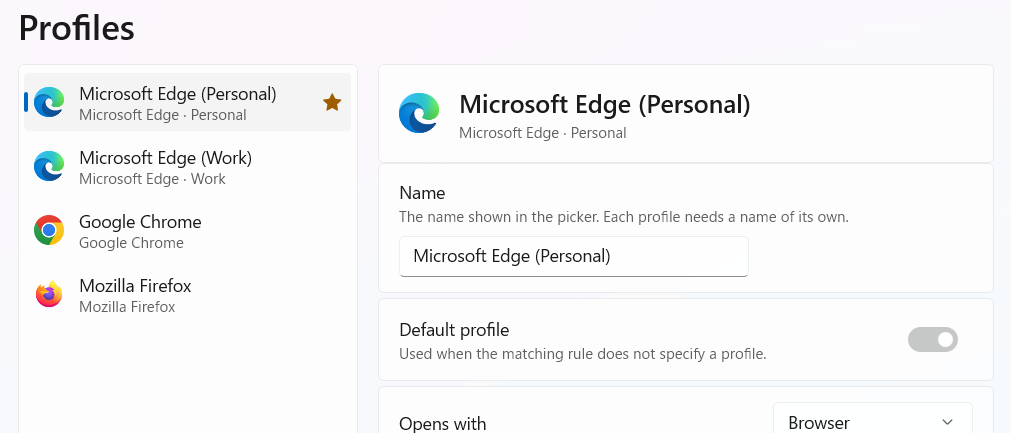
A profile can be marked as the Default profile. This is the profile used when a rule or another setting does not specify which profile to open. Only one profile can be the default. With the initial settings, URLs that do not match any rule also open with the default profile.
New profiles use the browser's name by default, but you can give them any name, such as "Work", "Personal", "Environment A", or "Environment B".
Adding a rule
Once you have added and configured profiles, create a rule for the URLs you want to match. In this example, links to cysharp.co.jp open in Microsoft Edge (Work), while all other links use Microsoft Edge (Personal).
Select Rules in the sidebar and click the + button below the rule list in the center of the window. This adds a New rule. Set its Name and configure its If conditions.
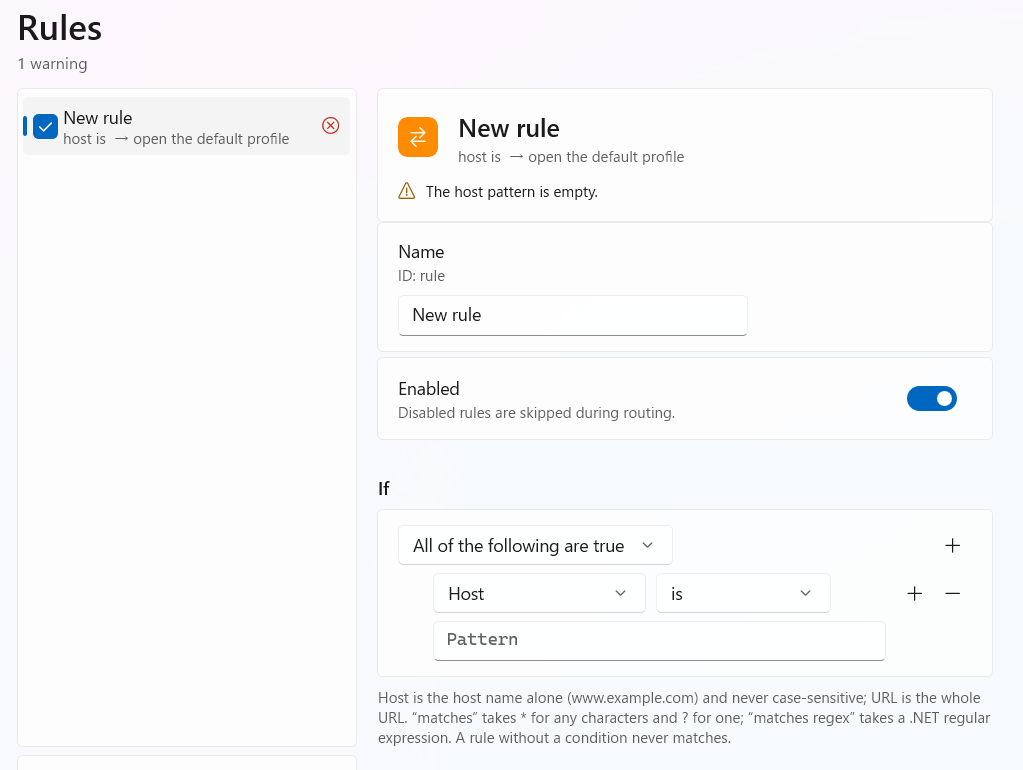
In If, you can specify conditions such as whether the host name or URL matches a particular string. You can also combine multiple conditions with AND or OR.
After configuring If, use Then to define the action to take when the rule matches. For this example, select Microsoft Edge (Work).
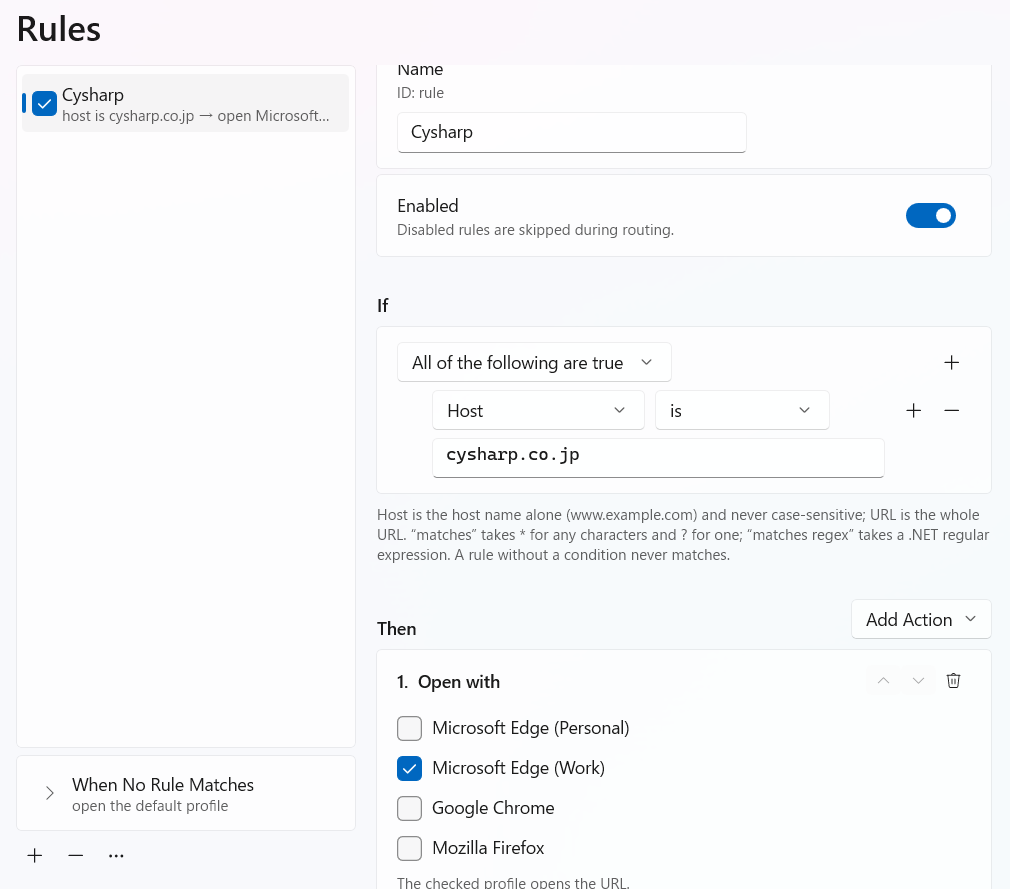
When No Rule Matches, below the rule list, specifies what to do if no rule matches. It is initially unset, so the default profile is used.
This completes the basic setup. To check that it works, open a URL from an application other than a browser, or use the test feature described below.
Testing rules
Select Test in the sidebar to try out your rules.
Enter a URL in the text field and click Test to see which rule matched and which action was taken or profile was used.
The following screenshot shows the result of testing https://cysharp.co.jp/.
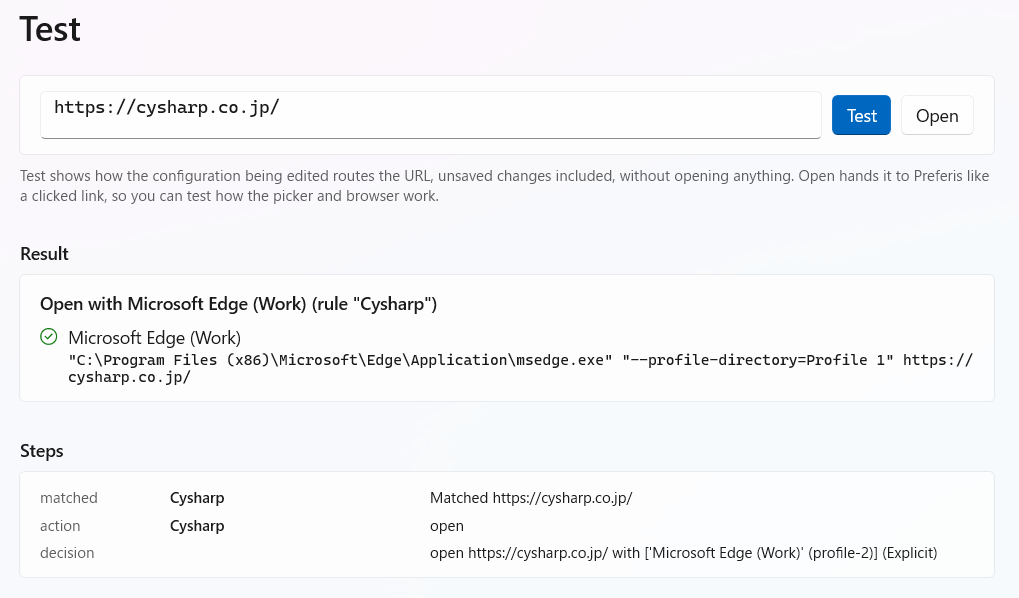
Click Open, next to Test, to check what actually happens when Preferis opens the URL.